
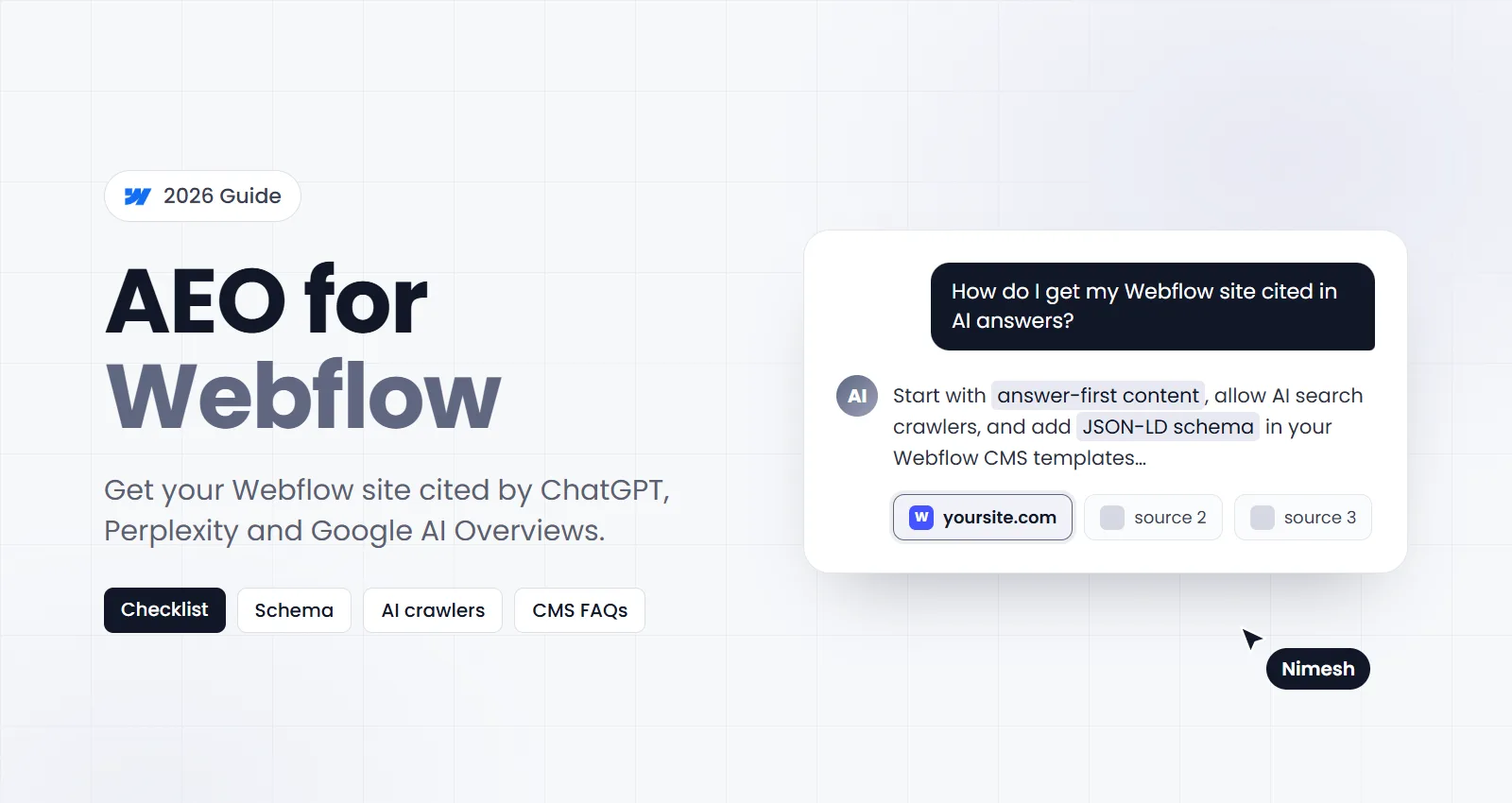
Quick answer: AEO for Webflow means making your Webflow pages easy for AI answer engines (ChatGPT, Perplexity, Google AI Overviews and AI Mode) to crawl, understand and quote. To do it, allow AI search crawlers in your robots.txt, put a short, direct answer under every question-style heading, add JSON-LD schema through Page Settings or your CMS template, and keep your pages fast with the important text in real HTML. Then measure AI referrals and repeat.
Search is changing quickly. More people now ask an AI tool instead of scrolling through ten blue links, and the tool answers with a few cited sources. If your Webflow site is one of those sources, you get the click and the trust. If it isn’t, you’re invisible to that visitor.
I build Webflow sites every day, and this is the checklist I use to make them ready for AI search.
Key takeaways
- AEO is SEO plus: indexing, speed and authority still come first.
- Let AI search bots crawl your site, even if you block AI training bots.
- Write answer-first: a question heading, then a 40–60 word answer, then detail.
- Add JSON-LD schema that matches what’s visible on the page. Webflow’s CMS can generate it for every item.
- Measure with AI referral traffic and real prompts, not guesses.
What is AEO, and how is it different from SEO?
Answer engine optimization (AEO) is the practice of structuring content so AI-powered tools can pull it into their answers and cite it as a source. You may also see it called GEO (generative engine optimization) or LLM SEO; they describe the same goal.
SEO aims to rank a page in a list of results. AEO aims to have a page quoted inside an answer. The two overlap heavily:
| SEO | AEO | |
|---|---|---|
| Goal | Rank in search results | Be cited in AI answers |
| Unit of success | A page | A passage or answer |
| Main signals | Relevance, links, technical health | Clear answers, structure, trust, crawlability |
| Measured by | Rankings, clicks | Citations, AI referrals, brand mentions |
The important part: AI answer engines mostly retrieve from pages that are already crawlable, indexed and trusted. A site with weak technical SEO won’t fix that with AEO tricks.
Why AEO matters for Webflow sites in 2026
Webflow itself has gone all in on this. In April 2026 it launched Webflow AEO, a product that tracks how a brand shows up in AI answers and suggests technical fixes, and it became generally available to Enterprise customers in May. At Webflow Conf 2026 in September, Webflow also announced AEO content agents and an expanded MCP server so AI agents can work directly inside Webflow projects.
You don’t need an Enterprise plan to benefit, though. Webflow already gives every site the foundations AI search rewards:
- Clean, semantic HTML rendered on the server, not hidden behind heavy JavaScript.
- Fast global hosting with a CDN and automatic SSL.
- A built-in sitemap and an editable robots.txt.
- Custom code fields for structured data on every page and CMS template.
- A CMS that keeps content consistent, which is ideal for FAQs, glossaries and comparisons.
The rest is how you set things up and how you write.
How do AI answer engines decide what to cite?
Each tool works differently, but they follow a similar pattern:
- Retrieve. The tool searches an index (its own, Bing’s or Google’s) for pages relevant to the question.
- Read. It fetches and parses the page. If a crawler is blocked, or the text only appears after scripts run, the page may be skipped.
- Select. It prefers passages that answer the question directly and clearly, from sources that look trustworthy.
- Cite. It quotes or summarises the passage and links back to the source.
So your job is to make every step easy: be crawlable, be readable, be the clearest answer and look credible.
The Webflow AEO checklist
1. Let AI search crawlers into your site
Open Site settings → SEO → Indexing in Webflow and check your robots.txt. Many sites block AI bots by accident, or block all of them on purpose without realising the cost.
There are two kinds of AI crawlers:
- Search and answer bots fetch pages to answer a user’s question and link back. Examples:
OAI-SearchBot(ChatGPT search),PerplexityBotand Googlebot (which powers AI Overviews and AI Mode). - Training bots collect content to train models. Examples:
GPTBotandGoogle-Extended.
If you want to show up in AI answers, allow the search bots. Blocking training bots is a business decision, and it doesn’t remove you from Google Search. A simple setup that allows everything except one training bot looks like this:
User-agent: *
Allow: /

User-agent: GPTBot
Disallow: /

Sitemap: https://www.yoursite.com/sitemap.xml
Bot names change, so check each provider’s documentation before you publish. Also make sure the .webflow.io staging subdomain isn’t the version that gets indexed: set your custom domain as the default and turn on the option to disable Webflow subdomain indexing in the SEO settings, then publish.
2. Write answer-first content
This is the change with the biggest impact, and it costs nothing. For each important page:
- Turn headings into the questions people actually ask: “How much does a Webflow website cost?” works better than “Pricing”.
- Directly under each question, write a 40–60 word answer that makes sense on its own. AI tools often lift exactly this passage.
- Follow with the detail: steps, examples, numbers and caveats.
- Define terms in one plain sentence (“X is…”) before you explain them.
- Use lists for steps and tables for comparisons. They’re easy to parse and easy to quote.
A good test: if someone read only your heading and the first two sentences below it, would they have their answer?
3. Get the HTML structure right in the Designer
AI crawlers read your markup, not your design. In the Webflow Designer:
- Use one H1 per page, then H2s and H3s in order. Change the tag in the heading settings rather than picking a heading because of its size.
- Use real list and table elements for lists and tables, not stacked div blocks.
- Write descriptive alt text for meaningful images, and keep important text out of images, Lottie files and videos.
- Make sure key content is in the page HTML. Text inside tabs, sliders and dropdowns is still in the HTML, which is fine. Text injected by third-party widgets often isn’t.
4. Add JSON-LD schema
Structured data tells machines what a page is: an article, a service, a FAQ, a person. Google’s guidance is clear that it should describe content that’s visible on the page, and that there’s no special “AI schema”. Use the standard types correctly.
In Webflow you have three places to add it:
- Site settings → Custom code → Head code for site-wide schema such as
OrganizationorWebSite. - Page settings → Custom code → Inside
<head>tag for a single static page. - CMS template page settings for schema that’s generated for every collection item.
For a blog template, add a BlogPosting block and insert CMS fields with the field picker (shown here as placeholders):
<script type="application/ld+json">
{
  "@context": "https://schema.org",
  "@type": "BlogPosting",
  "headline": "[Name field]",
  "description": "[Summary field]",
  "image": "[Main image field]",
  "datePublished": "[Published date field]",
  "dateModified": "[Updated date field]",
  "author": { "@type": "Person", "name": "[Author name field]" }
}
</script>
Two things to watch:
- Escaping. If a CMS field contains double quotes or line breaks, it can break the JSON. Keep schema fields to plain text, or use a dedicated plain-text field for them.
- Dates. Schema dates should look like
2026-10-13. View the published page source to check how your date fields print, and adjust the format if they don’t match.
Test every template with Google’s Rich Results Test and the Schema Markup Validator after you publish.
5. Use the CMS for FAQs, glossaries and comparisons
AI tools love content that answers one question at a time. Webflow’s CMS lets you produce it at scale without losing consistency:
- FAQ collection: one item per question, with a short answer field. Show them on relevant pages with a filtered collection list, and generate
FAQPageschema from the same fields so the markup always matches what’s on screen. - Glossary collection: one page per term in your industry, each starting with a one-sentence definition.
- Comparison pages: “X vs Y” pages built from the same fields, with a summary table at the top.
Only use FAQPage markup for genuine FAQs, not for marketing copy dressed up as questions.
6. Show who wrote it and when
AI answer engines lean towards sources that look credible. Give them signals:
- Add an author to every article, with a short bio and a link to an author or about page.
- Show published and updated dates, and keep them honest. Update a post only when you actually change it.
- Add
PersonorOrganizationschema withsameAslinks to your LinkedIn and other profiles. - Cite sources for statistics, and include your own experience, examples and screenshots. Original detail is hard to get anywhere else, and that’s exactly why it gets cited.
7. Keep pages fast and crawlable
Speed and accessibility help both people and crawlers:
- Compress images and use WebP or AVIF. Webflow can convert images for you.
- Limit third-party scripts. Chat widgets, trackers and embeds are the usual cause of slow Webflow sites.
- Keep interactions and GSAP animations light, and never hide important content until an animation runs.
- Check PageSpeed Insights and fix the largest issues first.
8. Consider an llms.txt file (optional)
llms.txt is a proposed plain-text file that gives AI tools a map of your most important pages. It’s unofficial, Google has said it doesn’t need it, and Webflow doesn’t generate one, so treat it as a low priority. If you want one, you’ll need to serve it from your domain through a proxy such as a Cloudflare Worker or a reverse proxy.
9. Measure your AI visibility
You can’t improve what you don’t measure:
- Analytics: in GA4 (or your analytics tool), look for referral traffic from
chatgpt.com,perplexity.ai,gemini.google.comandcopilot.microsoft.com. - Search Console: AI Overviews and AI Mode traffic is included in your Search performance report.
- Manual prompts: keep a list of 10–20 questions your customers ask. Once a month, ask them in ChatGPT, Perplexity and Google, and note who gets cited.
- Enterprise: if you’re on Webflow Enterprise, Webflow AEO tracks this for you.
Common AEO mistakes on Webflow sites
- Blocking every AI bot in robots.txt, including the ones that send traffic.
- Leaving the
.webflow.iostaging domain indexable, creating duplicate content. - Headings chosen by size instead of order, or several H1s on one page.
- Important text inside images or animations.
- FAQ schema that doesn’t match the questions shown on the page.
- Thin pages written for keywords, with no clear answer and no real expertise.
- Publishing once and never updating outdated content.
Final thoughts
AEO isn’t a hack. It’s good content and solid technical SEO, structured so machines can quote it. Webflow gives you most of the tools already; the difference comes from how you set up crawling, schema and the CMS, and from writing pages that answer questions directly.
If you’d like help making your Webflow site ready for AI search, from audit to schema and CMS setup, get in touch. I’m happy to take a look.
Frequently Asked Questions
What is AEO in Webflow?
AEO (answer engine optimization) in Webflow means structuring your Webflow pages so AI tools like ChatGPT, Perplexity and Google AI Overviews can find, understand and quote them. In practice that means letting AI crawlers in, writing answer-first content under question headings, adding JSON-LD schema in page or CMS template settings, and keeping pages fast and crawlable.
Is AEO different from SEO?
AEO builds on SEO rather than replacing it. AI answer engines mostly pull from pages that are already indexed and trusted, so technical SEO still comes first. AEO adds a focus on short, quotable answers, question-based structure and clear signals about who wrote the content.
Does Webflow support AEO out of the box?
Webflow gives you the building blocks: clean HTML, fast hosting, an editable robots.txt, an automatic sitemap, custom code fields for JSON-LD and a CMS for structured content. Enterprise customers can also use Webflow AEO, a paid product launched in 2026 that tracks AI visibility and suggests fixes. On other plans you do the work yourself with the checklist in this guide.
Do I need an llms.txt file on my Webflow site?
No, it is optional. llms.txt is an unofficial proposal, Webflow does not generate one, and Google has said its AI features do not need it. Fix crawler access, content structure and schema first; add llms.txt later if you want to, using a proxy or custom setup to serve it from your domain.
Which schema types help Webflow sites appear in AI answers?
Use the types that match what is visible on the page, such as Organization or Person on the home page, Article or BlogPosting on posts, FAQPage for real FAQ sections, Product or Service on offer pages and BreadcrumbList for navigation. Schema helps machines understand the page, but it does not guarantee a citation.
How long does AEO take to show results?
Expect weeks to months. AI tools draw on search indexes and their own crawls, so changes need to be recrawled first. Track progress by checking AI referral traffic in your analytics and by asking ChatGPT, Perplexity and Google the questions your customers ask.